
Pipelines
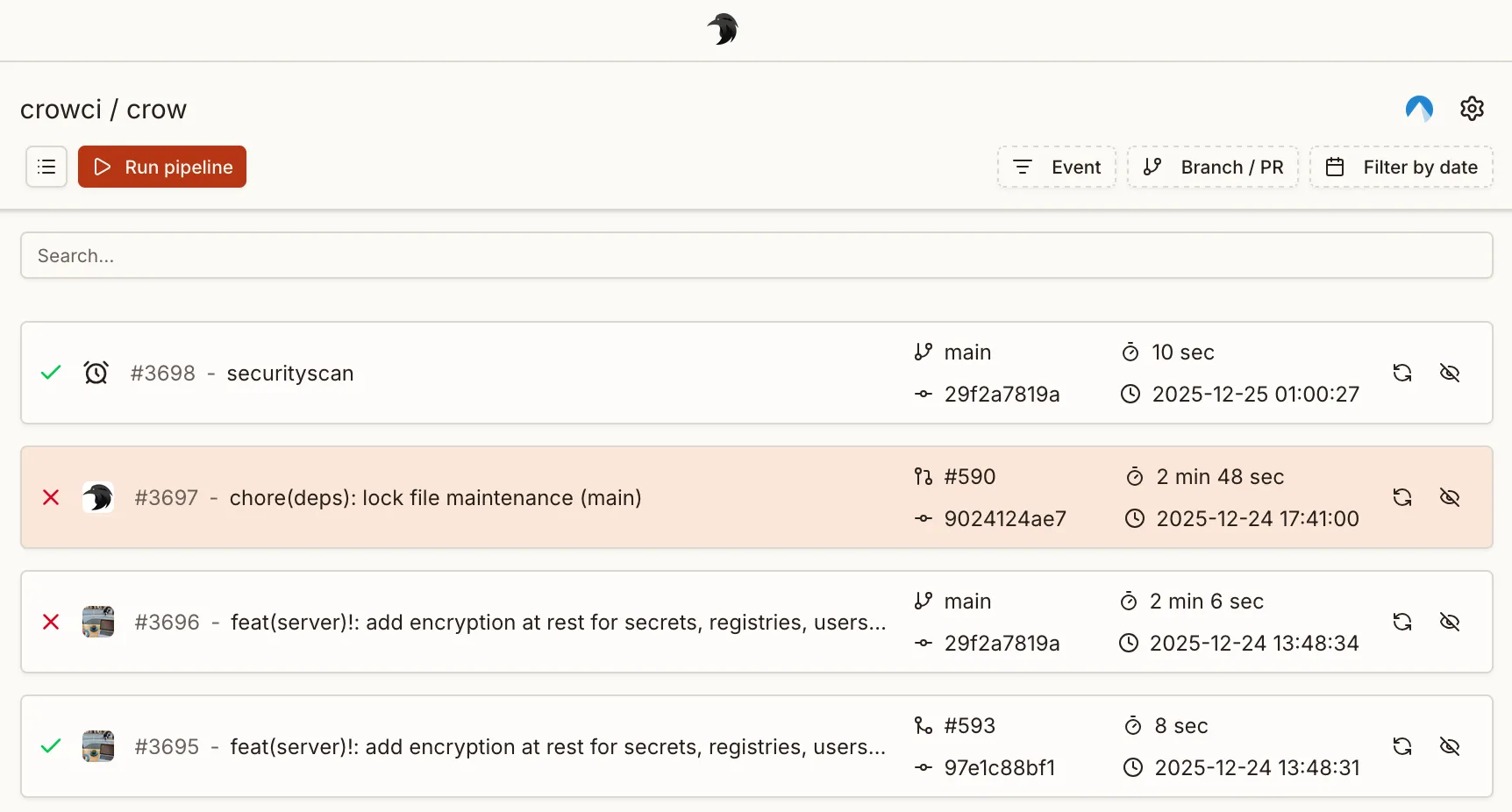
Concepts
Section titled “Concepts”Crow uses a three-level hierarchy: pipeline > workflow > step.
- Pipeline — a single CI invocation. A pipeline is not defined in a file; it is created at runtime in response to one event (push, pull request, manual run, …) and bundles all workflows that match that event.
- Workflow — a YAML file in
.crow/(or Jsonnet.jsonnet) defining a collection of steps. This is what you author to describe what should run. - Step — a single command sequence executed inside a container.
When an event reaches Crow, every workflow whose when block matches that event is collected into one pipeline and executed.
A push that matches three workflow files results in one pipeline containing three workflows — not three pipelines.
The pipeline is the run; the workflows are what runs inside it.
Each YAML file in .crow/ defines one workflow.
A workflow that uses a matrix expands at runtime into one workflow instance per matrix combination, so a single matrix file can produce multiple workflows in the resulting pipeline.
The following file tree defines four workflows:
Each workflow can consist of an arbitrary number of steps. By default, workflows do not have a dependency to each other and are executed in parallel. Steps within a workflow are executed sequentially by their order of definition.
Both steps and workflows accept a depends_on: [] key which can be used to specify an explicit execution order.
Execution control
Section titled “Execution control”By default, all workflows start in parallel if they have matching event triggers.
An execution order can be enforced by using depends_on:
This keyword also works for dependency resolution with steps.
Event triggers
Section titled “Event triggers”Event triggers are mandatory and define under which conditions a workflow is executed.
At the very least one even trigger must be specified, for example to execute the pipeline on a push event:
Typically, you want to use a more fine-grained logic including more events, for example triggering a workflow for pull_request events and pushes to the default branch of the repository:
There are more ways to define event triggers using both list and map notation.
See the when filters reference for all available options and the full list of events.
Matrix workflows
Section titled “Matrix workflows”Matrix workflows execute a separate workflow for each combination in the specified matrix. This simplifies testing and building against multiple configurations without copying the full pipeline definition but only declare the variable parts.
Example:
Each definition can also be a combination of variables.
In this case, nest the definitions below the include keyword:
Interpolation
Section titled “Interpolation”Matrix variables are interpolated in the YAML using the ${VARIABLE} syntax, before the YAML is parsed.
This is an example YAML file before interpolating matrix parameters:
And after:
Examples
Section titled “Examples”Matrix pipeline with a variable image tag
Section titled “Matrix pipeline with a variable image tag”Matrix pipeline using multiple platforms
Section titled “Matrix pipeline using multiple platforms”Skipping commits
Section titled “Skipping commits”Commits can be prohibited from triggering a webhook by adding [SKIP CI] or [CI SKIP] (case-insensitive) to the commit message.
Container Naming Scheme
Section titled “Container Naming Scheme”Crow supports configurable container naming schemes which determines the names of containers (and pods/services in Kubernetes) created during pipeline execution.
There are two supported schemes:
-
Descriptive (default)
- Format:
<owner>-<repo name>-<pipeline id>-<workflow id>-<step name> - Example:
myowner-myrepo-42-3-build - Matrix workflows: Each workflow instance gets a unique workflow number for proper identification
- Single workflows: Workflow number is still included for consistency
- Format:
-
Hash-based (legacy)
- Format:
crow_<hash> - Example:
crow_123e4567-e89b-12d3-a456-426614174000 - This was previously the default (until 3.x) (as
wp_<hash>), now updated tocrow_for clarity.
- Format:
The naming scheme can be set via the server environment variable CROW_CONTAINER_NAME_SCHEME.
Manual Pipeline Triggering
Section titled “Manual Pipeline Triggering”A pipeline can be triggered manually from the UI or CLI instead of by a forge event such as push or pull_request.
Manual runs are the way to start deployments, releases, one-off maintenance jobs, or anything else you want to launch on demand, optionally parameterized with variables the user fills in first.
Enabling manual triggering
Section titled “Enabling manual triggering”A workflow only appears in the manual trigger dialog when its when block contains the manual event.
Add it on its own to make the workflow manual-only:
Or list it alongside other events so the same workflow still runs automatically:
Workflows without the manual event are never listed and cannot be started by hand.
Declaring variables
Section titled “Declaring variables”Manual runs can be parameterized with variables that the user sets before the pipeline starts.
Declare them in the workflow’s top-level variables: block, keyed by variable name.
Each entry accepts these fields:
| Field | Type | Purpose |
|---|---|---|
description | string | Helper text shown beneath the field in the UI. |
options | list of strings | Restricts the value to a fixed set and renders it as a dropdown instead of a free-text input. |
default | string | Pre-filled value; for options it selects the initially chosen entry. |
required | boolean | When true, the field is marked with * and the pipeline cannot start until it has a value. |
A worked example for a deploy workflow:
The shorthand form NAME: value is equivalent to a declaration carrying only a default.
Every value reaches the pipeline as a string, so quote booleans and numbers ('true', '3.12') to stop YAML from coercing them.
Inside the workflow a variable is available for $VAR substitution in commands and for when.evaluate expressions.
A variable used only via $VAR substitution, and never in evaluate, must be declared here to be settable.
Variables inferred from evaluate
Section titled “Variables inferred from evaluate”Variables referenced in a when.evaluate expression are surfaced in the dialog automatically, even without a variables: declaration.
Their names are extracted from the expression, and simple == or in comparisons against string literals become dropdown options:
The snippet above surfaces a DEPLOY_ENV dropdown offering staging and production with no variables: block at all.
An explicit declaration always wins over what is inferred, so declare the variable when you also want a description, a default, or the required flag.
Built-in CI_* variables and the deployment task selector are never offered as inputs.
Triggering from the UI
Section titled “Triggering from the UI”Open the manual trigger dialog from the repository’s pipeline list. It has two columns: the available workflows on the left and their variables on the right. Choose a branch at the top; the workflow list and variables reflect the configuration on that branch.
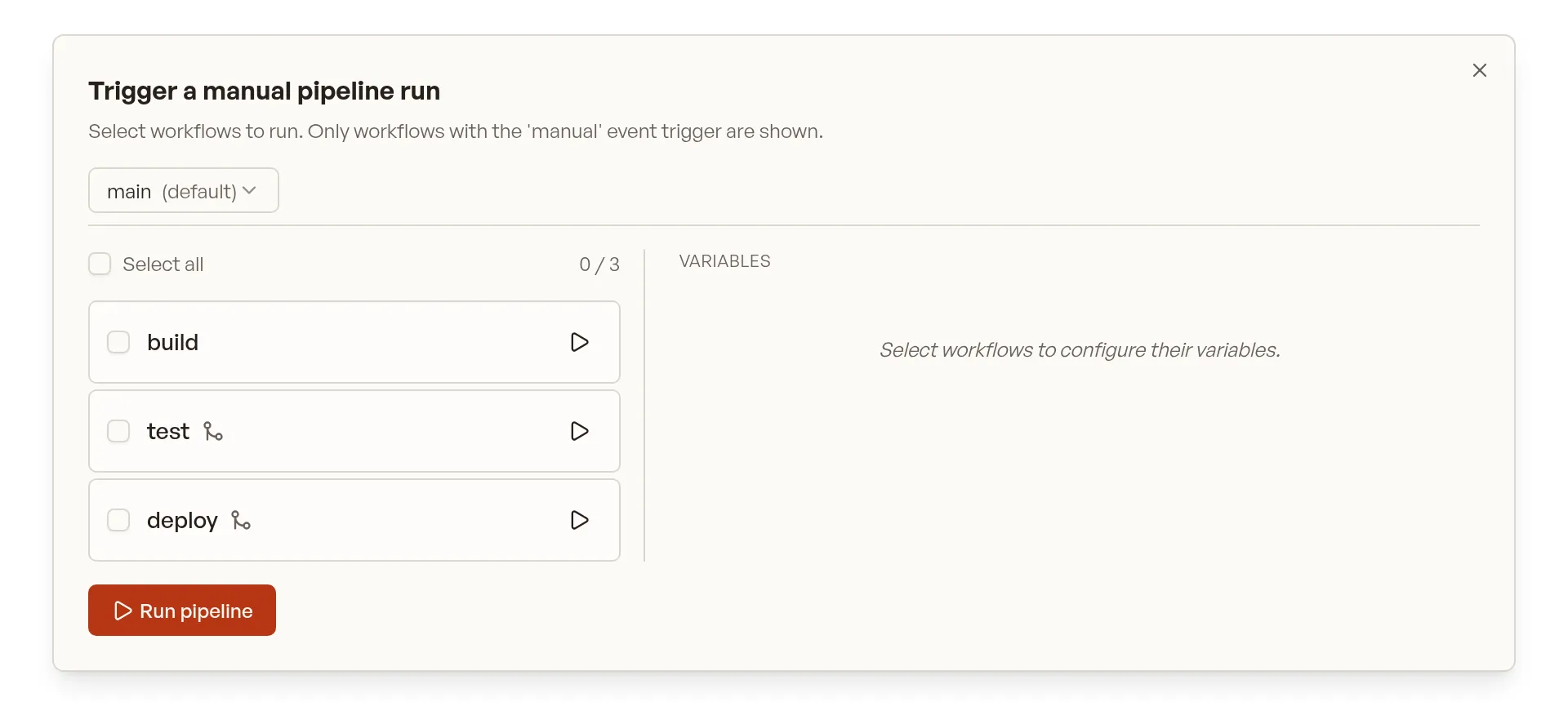
Only workflows with the manual event are listed. From the left column you can:
- Select workflows: click anywhere on a row (or its checkbox) to include it, then click Run pipeline. The selected workflows are bundled into one new pipeline.
- Quick-start a single workflow: click the play button on a row to immediately start a pipeline containing just that workflow, using each variable’s default.
- Select all: use the Select all checkbox to include every listed workflow.
Workflows that depend on others show a branch icon next to their name; hover it to see the dependencies.
Setting variables in the UI
Section titled “Setting variables in the UI”The right column shows the variables of the currently selected workflows, grouped so it is clear which variable belongs where.
A variable declared by more than one selected workflow appears once in a Shared group at the top, annotated with a Used by note; each remaining workflow’s variables follow under its own heading.
In the screenshot below both test and deploy declare LOG_LEVEL, so it is shown once under Shared, while deploy’s own variables sit under the deploy heading.
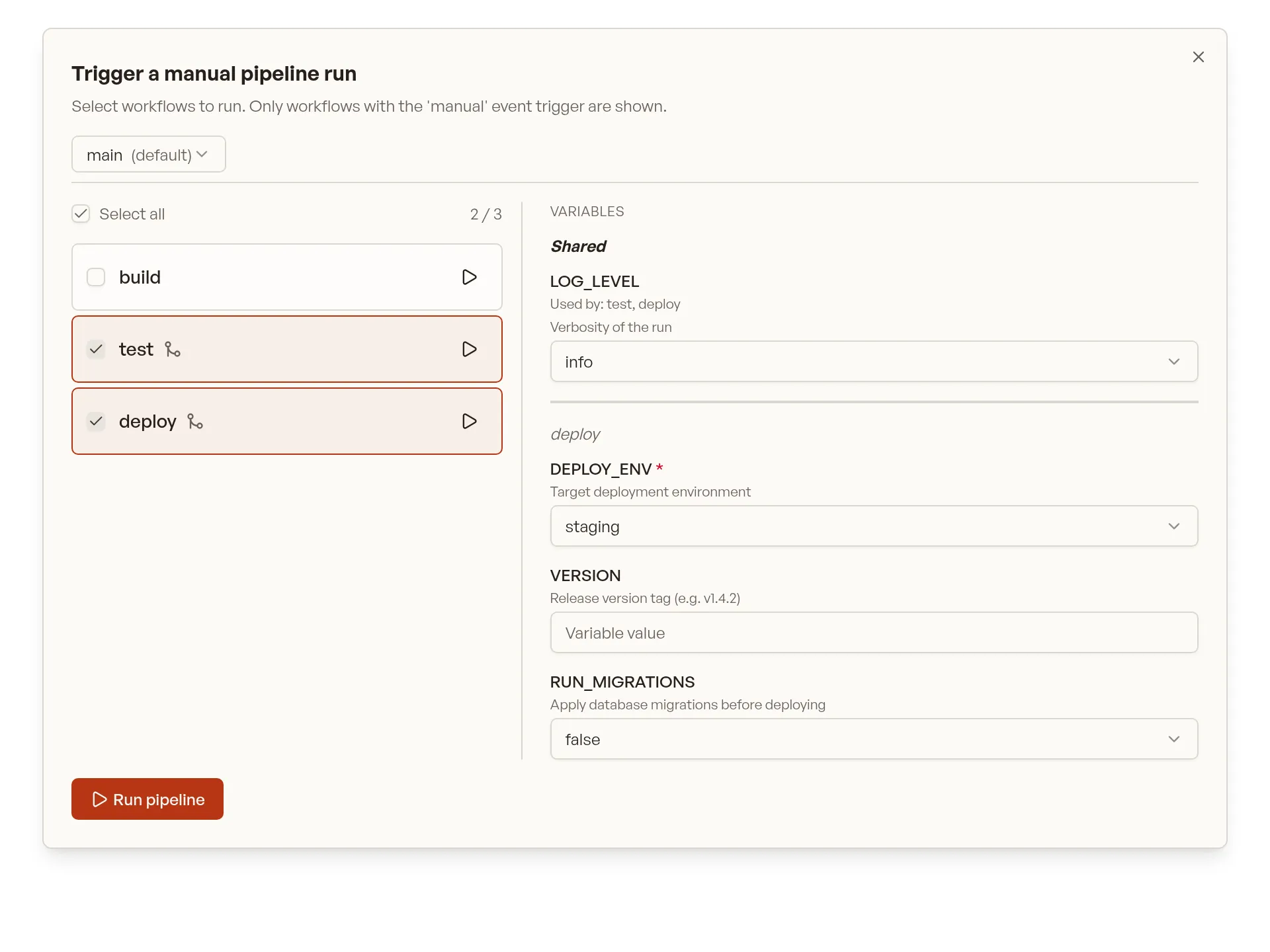
Each field renders according to its declaration:
- variables with
optionsrender as a dropdown, everything else as a text input; - every field is pre-filled with its declared
default; - required variables are marked with
*and must be set before Run pipeline is enabled.
Free-form variable entry is not available: only declared or evaluate-referenced variables can be set.
Submitting a value outside a variable’s declared options, or omitting a required variable, is rejected.
Dependency handling
Section titled “Dependency handling”When a selected workflow depends on other workflows (via depends_on), the system automatically includes those dependencies if they also have the manual event trigger.
For example, given these workflows:
If you select only “deploy”, the “build” workflow will be automatically included because:
- “deploy” depends on “build”
- “build” has the
manualevent trigger
CLI triggering
Section titled “CLI triggering”Manual pipelines can also be triggered from the CLI, which is handy for scripts and scheduled jobs.
The repository is a positional argument (its ID or full name) and --branch is required:
Pass variables with --var NAME=value, repeating the flag for each variable:
All workflows matching the branch are considered; use when.evaluate (see below) to control which ones actually run.
Using variables to control what runs
Section titled “Using variables to control what runs”Because variables are available in when.evaluate, they can gate whole workflows or individual steps at runtime.
A step or workflow whose evaluate resolves to false is skipped, so the same manual pipeline can behave differently depending on the values entered:
Here the deploy step only runs when DEPLOY_ENV is set to production, whether the pipeline was started from the UI or with --var DEPLOY_ENV=production on the CLI.